
Appearance
Dashboard
The Dashboard is the first page you see when you open Faker Studio from the WordPress admin menu. It provides an overview of your generation activity, recent news, tutorial videos, and detected field plugins. The Dashboard refreshes its data automatically after each generation run.
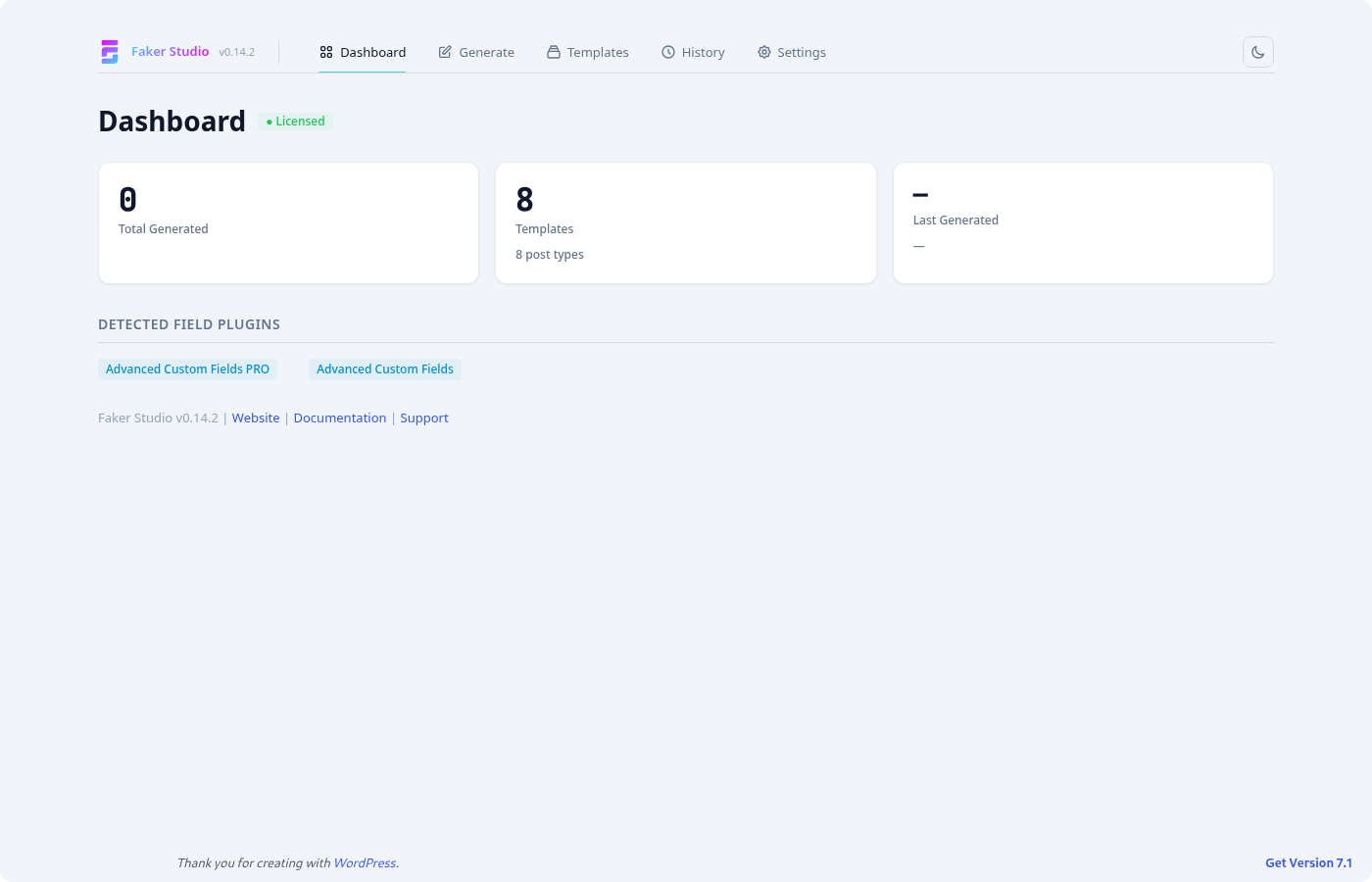
Stats Row
Three stat cards span the top of the Dashboard.
Total Generated shows the combined count of all Faker Studio-generated posts, terms, users, and comments on your site. Templates displays how many saved templates exist and how many distinct post types they cover. Last Generated shows a relative timestamp of your most recent generation run, along with a summary of what was generated (e.g., "20 movie").
These statistics pull their data from Faker Studio's History tracking system. If you clear your history, the stats reset accordingly.

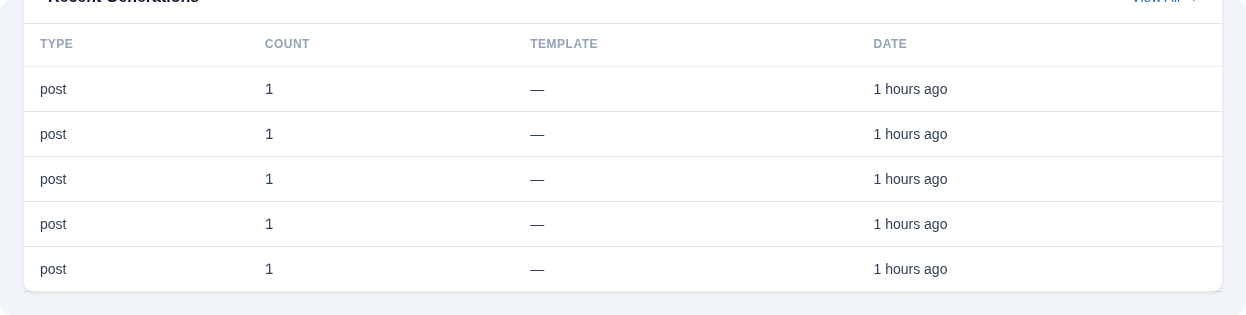
Recent Generations
Below the stats row, a table lists the five most recent generation events. Each row shows the content type or subtype, the number of items created, the template used (if any), and a relative timestamp. A "View All" link navigates to the full History page.
This table is useful for quickly confirming that a generation run completed as expected without navigating away from the Dashboard.
News
The News section displays an embedded iframe with the latest Faker Studio announcements. Content is fetched from the Faker Studio API and rendered in a sandboxed iframe. This section only appears when news content is available.
Video Tutorials
A grid of video tutorial cards provides quick access to Faker Studio walkthroughs. Each card shows a thumbnail, title, duration, and optional description. Clicking a card opens a modal with an embedded video player. Videos are fetched from the Faker Studio API and only appear when tutorial content is available.
Detected Field Plugins
At the bottom of the Dashboard, Faker Studio displays pills for each detected field plugin on your site. Active plugins appear as highlighted pills, while installed but inactive plugins appear muted. If no field plugins are detected, a "No field plugins detected" message appears instead.
Faker Studio's Field Detection system works with all supported plugins to automatically discover custom fields, determine their types, and generate appropriate fake data. You do not need to manually map fields.

TIP
If a plugin you expect to see does not appear, check that it is properly activated in your WordPress Plugins screen.